
This page gives a quick tour of Family Historian using pictures and text only. There is also a short (8 minute) video tour: A Quick Tour of Family Historian 7. See What’s New in Version 7 to learn about the latest new features and enhancements.
Click on any of the images shown below, to view it in close-up.
Getting Started with the Focus Window
The Focus Window is the main workspace window. This image shows spouses and children for Ian Munro, with ‘docked’ Property Box on the right side (data entry window).

The Focus Window showing parents and siblings for Ian Munro (with no Property Box in this case).

The Focus Window showing ancestors of Ian Munro.

The Focus Window showing descendants of Charles Munro.

Pictures and Multimedia
Pictures and other multimedia are shared resources in Family Historian. If a picture shows several people, for example, you will normally link it to all the people in the picture. The Media Window allows you to view all the media in the current project, or any subset, using whatever filter you want. In this example, the Media Window is showing thumbnails of all images in the current project. Double-click on any image to view the picture in close-up (see next).

The Media Window showing one picture at a time. You can link each person to their face in each picture they’re in.

The Property Box showing thumbnails for Ian Munro (in close-up) in the Media tab. Uncheck the Close-up button on the toolbar, to view the whole picture. You can toggle between viewing thumbnails and full pictures here too. You can view the Property Box for any Individual (or other record type) at any time.

Interactive Diagrams and Smart Trees
Family Historian diagrams are interactive. They are used in numerous ways – for browsing and exploring, for data entry (by click-and-drag), for editing, and for creating charts to print out or send to others. Diagrams include Family Historian’s All Relatives diagram, the All Relatives + Indirect Relatives diagram, and the Everyone diagram.

Diagram branches have (optional) buttons which you can click on to expand or close the branch. When you do this, the diagram will automatically adjust to accommodate the change.

You can click-and-drag on boxes to add relatives. Again, diagrams automatically adjust to accommodate new records, and deleted or updated records. Enter details about the person in the Property Box. Using automatic source citations you can ensure that correct source citations are added, even when you add relatives in this way.

All trees in Family Historian diagrams are Smart Trees. You can move or resize boxes and branches and the trees adjust automatically. You have extensive control over the appearance, content and layout of all charts.

Data Entry with the Property Box
The Property Box (viewed briefly in previous sections) is the main data entry window. It is shown here with the Citation List Pane displayed (yellow panel at the bottom).

This is another view of the Property Box, with the Citation List pane hidden. It shows the Facts tab, where the events and attributes in the life of each person are recorded. You can optionally display extended family timeline facts too, as shown here. These are key events in the lives of close-relatives (with a light-grey background).

Entering accent characters is easy. If you press-and-hold any letter, when typing in any field in the Property Box, in the Note Window, or in the Automatic Source Citation pane, a popup window will appear just above the field, with a choice of accents for the letter in question. The choice of accent characters listed is configurable, and can include accent characters from any languages.

The Property Box is very configurable. You can adjust the text size, and resize or reposition the window. You can also adjust the relative size of panes within it. You can ‘dock’ it to the side of any workspace window or ‘float’ it in front. And you can customize which fields it shows and add new ones.

This window allows you to choose which data items appear on the Main tab of the Property Box. You can even add your own custom tabs if you wish.

Sources and Source Citations
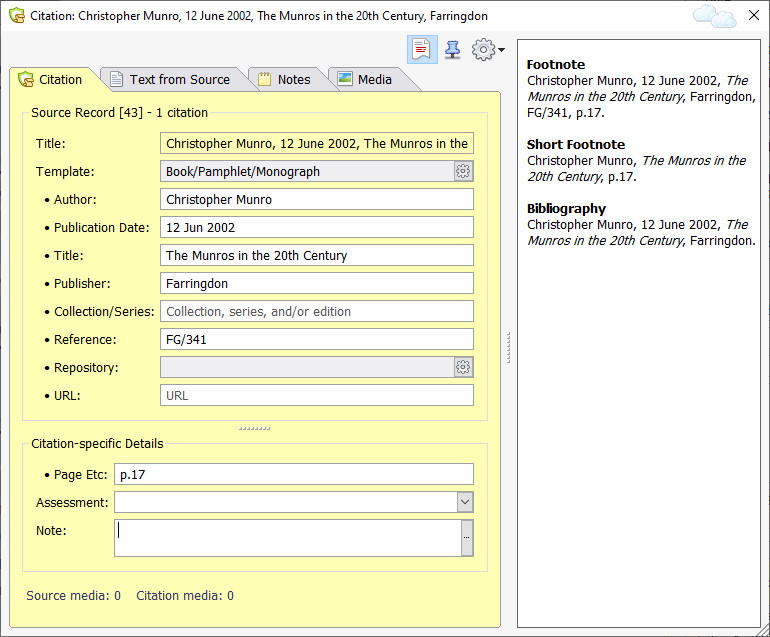
The main data entry window for source citation details, is the Citation Window (shown right). It is used in conjunction with the Property Box (Citation List pane), the Note Window (with embedded source citations), and the Automatic Source Citation pane.
Source records can optionally use source templates, as in the example right which uses the Book/Pamphlet/Monograph template. Source templates allow easier and more accurate recording of source information, and make possible more professional-looking citing of sources in reports. Two collections of source templates are provided: an Advanced collection modelled on Elizabeth Shown Mills book Evidence Explained, and an Essentials collection, designed by Calico Pie with help and advice from the Genealogy Programme of the University of Strathclyde. All templates can be customized, or you can create your own. You can even create your own collections to share with others.
Version 7 supports a whole new workflow, based around working directly from sources. This is called Source-driven Data Entry, and it is designed to match the way genealogists typically work. When you receive a source of some kind (such as a document), you can now start by entering the details of that source directly into Family Historian. New tools are available to facilitate this process, including in many cases new data entry assistants. These are plugins (program extensions) which are designed for specific types of sources, and may be region-specific. They aim to make data entry both quicker and easier, while providing more consistent, comprehensive and professional results. A library of free data entry assistants can be accessed from within the program. This library is maintained in the Family Historian Plugin Store, and all Family Historian users can create data entry assistants, and share them via the library; so over time, we expect that more and more source types will be supported.

Support for recording Text from Source information (essentially transcriptions of the original source details) has been improved and uses autotext which allows standard layouts of standard documents from all over the world to be used, so that transcriptions can match the actual layout and format of the original documents. Users can easily create their own standard document layouts as needed, and even share these with others. Text from Source fields use all of the new word processing features (see above), some of which are particularly useful in this context – such as tables and record links. Some data entry assistants can also automatically generate high quality Text from Source transcriptions.

Word Processing Features
These features include:
- Fonts and text styles (bold, italic, underline and strike-out), text and highlight colouring, paragraph styles (bullets, indentation, alignment)
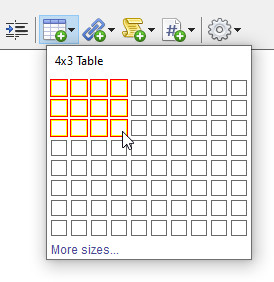
- Tables (much-used in research notes, source transcriptions, and elsewhere)
- Embedded source citations. You can now insert source citations directly into the text. Click on the superscript citation number to view the full citation in the new Citation Window (see above).
- Record links. You can now insert clickable links to records of any kind.
- Clickable Website links that behave as you would expect
- Embedded hash tags (also known as notes-within-notes). Hash tags are designed to be hidden when the note is displayed in reports (see example right in yellow).
- Spellcheck (with multiple spellcheck dictionaries for different languages)
- Copy-and-paste from web pages and elsewhere, including copying web page tables as tables in notes
- Localised multi-level undo/redo for notes (over and above the multi-level undo/redo for changes to program data)

Research Notes
Research notes are separate from ordinary notes. Different styles of research notes are available, designed for logs, plans, or task lists; but you can design your own types to suit your preferred way of working. You can link records to research notes. Research notes support full word processing features, so you can also insert links to any records into research notes. These link are not just to records for people, but to records of any type. You can even insert links to other research notes if you want to.
Research notes are in addition to the much shorter note-within-a-note, hash tags, mentioned in the word processing section above, which can also be used as a way of recording much shorter research notes.

Automatic Internet Data Matching
Make discoveries easily with Automatic Internet Data Matching to historical records and family tree profiles on Findmypast and MyHeritage databases. Hints display in the Focus Window when matches are found. These are little green circles showing the number of matches found. A popup window with more information appears when you hover the mouse over a hint (see right). Clicking on the hint shows the match in a web page (see next section). Some of the matches can be viewed and confirmed for free, while others require an appropriate subscription. Matches can be viewed in the Web Search Window or an external browser.

Web Clipping and the Web Search Window
Extracting data (text and pictures) from websites – sometimes called ‘web clipping’ – is easy using a combination of Family Historian tools and features. Typically you will use the Automatic Source Citation pane to create, or find, a Source record to represent the data you are clipping. Then you can simply drag-and-drop text or pictures from the web-page onto the Property Box. The new, or modified data, is given an appropriate source citation automatically. You don’t have to use Family Historian’s Web Search Window for web clipping (shown here). You can use an external browser if you prefer. Most browsers should allow you to click-and-drag text. Some browsers, and some websites, may not let you click-and-drag images. In that case, another option is to copy-and-paste (text and/or images) instead.

The Map Window
Use the Map Window to map the locations of all the places and events in your projects. View family movements over time, using the Time Slider. Choose any combination of people and events, and filter on event types, using the same or different markers. Click on a marker to view all events that occurred there in a popup window. For example, you can show all your ancestors’ birth places marked in red, and all your spouse’s ancestors’ birth places marked in green. Moving around the map, and zooming in or out to see more or less detail, is easy and fun.

Reports and the Report Window
Family Historian comes with 43 standard reports, and you can create your own custom reports. All reports are highly configurable.Reports can be saved in PDF format, as word-processor documents (in Rich Text Format), as web pages (HTML format), or as text files.

Reports include three different kinds of narrative reports, such as this Descendants by Generation report.

Create Books & Booklets
Create professional-looking family tree books and booklets, with a mix of auto-generated chapters and your own ‘free text’ pages and chapters. Add any reports, charts or diagrams to your books, as well as a title page, contents page, index page, and so on. Books can be saved in PDF format or in word-processor (Rich Text) format.

Create Websites & Family Tree CDs/DVDs
Creating a website to display your Family tree is easy. A wizard takes you through a few simple steps, and then generates your website for you. Creating a great-looking family tree CD or DVD is just as easy.

An example website page. You can accept the default settings, or override them to configure the site as you wish. Visitors to your website can click on any picture or thumbnail image to see the full picture in a ‘popup’ window.

A picture displayed in a ‘popup’ window.

Explore Your Records
The Records Window allows you to search and explore your records. You can sort on any column, and configure columns to display whatever information you like. Use filters to quickly find the records you’re looking for.

Use Queries to Get the Most from Your Data
A query is a stored set of instructions for retrieving data, and for displaying it in a spreadsheet-like grid. For example, you might create a query to retrieve information about all the male ancestors of your spouse who died of a heart attack or whose cause of death is not known. Family Historian comes with 51 queries when installed, but you can easily create your own.

Multi-language Output
The language of Family Historian itself is English (U.S. English or U.K. English) ; so to use the program, some command of the English language is needed. However, the program can be used to record information in languages from all over the world, and reports, books and diagrams can all be rendered in multiple languages, using language packs (free downloads from the Family Historian Plugin Store). The current library includes French, German, Swedish, Dutch/Flemish, Norwegian, Portuguese and English; but new language packs can be added at any time. Language packs can be used not just to render output correctly in the original data language (this is called same language rendering), they can also be used to translate reports, books and diagrams into different languages.

The Plugin Store
Download free plugins from the Family Historian Plugin Store to add yet more features and alternative tools for mapping, timelines, search/replace, and much more. Anyone can write plugins using the built-in scripting tools (see ‘Other Tools’ below) and submit them to the Plugin Store for all Family Historian users to share. To access the Plugin Store from within the program, click on Plugins on the Tools menu, and then click the Plugin Store button.

Other Tools
- The Automatic Source Citation pane for automatically generating source citations for new and modified data.
- A powerful Find tool, and an equally powerful Find and Replace tool.
- An Internet Search tool
- A How Related tool to show how people are related, directly or indirectly (see image right). Click the ‘Display Graphically’ button to see exactly how the people are related on a diagram, or click ‘View Report’ to see the same information presented in a report.
- A Merge/Compare tool to manage merging data files into your projects
- A tool to help you manage links to external files
- A tool to help you manage and work with record identifiers
- A Backup-and-Restore facility
- Powerful built-in scripting tools can be used to automate repetitive tasks, make extensive one-off changes to your data, or even to create your own new tools or new kinds of output. If you want, you can even use them to create plugins for submission to the Family Historian Plugin Store (see above).
- A tool to help you split a family tree file into parts.
- A facility to help you create and work with Named Lists of records (named lists are used for research purposes as To Do lists, as bookmark lists, as lists of key people, and so on
- Powerful import/export functionality