Property Box
Witnesses Window
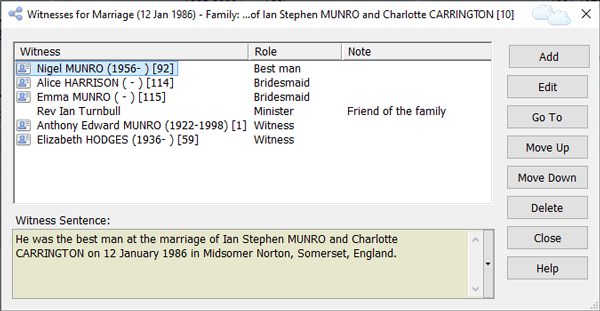
Witnesses Window
The Witnesses Window is a floating window and satellite of the Property Box. It stays in sync with the currently selected fact in the Facts tab of the Property Box and shows the witnesses for the selected fact. The Witnesses Window closes automatically when the Property Box closes. It also closes if the Property Box displays a record which does not have a Facts tab.
To open the Witnesses window, select any event or attribute in the Facts tab of the Property Box and
click on the Witnesses button  on the toolbar. You
can also right-click on any event or attribute and chooses Witnesses
from the dropdown context menu that appears. If
you then select another event or attribute, notice that the Witnesses
window will update itself to show the witnesses (if any) for that fact.
on the toolbar. You
can also right-click on any event or attribute and chooses Witnesses
from the dropdown context menu that appears. If
you then select another event or attribute, notice that the Witnesses
window will update itself to show the witnesses (if any) for that fact.
Every witness has a specified role, and optionally also a note and source citations. See Adding Notes and Source Citations for Witnesses below, to learn how to add these. To learn more about witnesses (and principals), see Witnesses.
Tip: If a fact has witnesses, it will display the witnesses
icon  in the right-hand column of the Fact List in the Facts tab of the
Property Box. A quick way to open the Witnesses Window is to click
on this icon.
in the right-hand column of the Fact List in the Facts tab of the
Property Box. A quick way to open the Witnesses Window is to click
on this icon.
Buttons
| Add | Add one or more witnesses. You will be asked if you wish to select one or more Individual records, or create a 'name-only' witness (see discussion above). The Edit Witness Dialog will be opened to allow a new witness to be added for the current fact. You can select as many Individual records at a time as you like. If you select more than one, however, the only field you can modify in the Edit Witness Dialog is role. Other fields will be greyed. |
|---|---|
| Edit | Edit witness details for the selected witness in the Edit Witness Dialog. You can select multiple witnesses and edit them all in one go. If you select more than one, however, the only field you can modify in the Edit Witness Dialog is role. Other fields will be greyed. |
| Go To | You can choose to view the current fact in the Fact tab of the Property Box for the currently selected witness, or for the principal (or one of them if there are two). If nothing appears to happen when you choose an option it is probably because you are already viewing the fact in the way requested. |
| Move Up | Move the selected witness(es) up. You could use this to, for example, change the order of bridesmaids at a wedding. |
| Move Down | Move the selected witness(es) down. |
| Delete | Delete selected witness(es). |
The Sentence Field
The last field on the Witnesses Window is the Sentence field. This shows how the person's role would be described in a narrative report (that is, a report which describes individuals as if telling a story - narrative reports are available from the Publish menu. You can edit the sentence template used for any type of role in any event or attribute (standard or custom) by clicking on Fact Types on the Tools menu. When you do this, the Fact Types Dialog appears. You can select any event or attribute and click on the button to open the Fact Definition Dialog. To change the sentence template for a role, click on the button to open the Witness Roles Dialog. From there you can edit any role, including its sentence template. When you change the sentence template for a given role in a fact type, you are making a change which will affect how sentences appear in narrative reports for all instances of that role for that fact type - unless overridden.
It sometimes happens that a given template is fine for most cases, but you may have the odd case where you want something special instead. In that case, you can override the standard template for a given role for a fact type by editing the Sentence field directly in the Witnesses Window.
When you click in the Sentence field, its contents will change. Where previously it may have shown a sentence like this:
He was the best man at the marriage of Ian Stephen MUNRO and Charlotte CARRINGTON on 12 January 1986 in Midsomer Norton, Somerset, England
... it may now show something like this:
{individual} was the best man at the marriage of {principal} {date} {place}
It has switched from showing you how the sentence will look given the current data, to showing you the actual sentence template used to generate this data. This template will usually contain codes, as this one does. In the example, {individual}, {principal}, {date} and {place} are all sentence template codes.
If you edit the field in any way, the background of the Sentence field will change from brown to white. A brown background shows that the standard template for this fact type has been used. A white background shows that the sentence for this particular instance of this fact has been overridden. When you change the default sentence, we call this a sentence override.
If you change your mind and want to cancel your sentence override, and revert to using the original form of the sentence, simply delete everything in the field. When you click elsewhere (or tab out of the field), the field will revert to its standard form.
The Sentence field has its own little menu which appears when you click on the vertical bar (with a little black triangle) to the right of the Sentence field. The commands on this menu are as follows:
- Edit Sentence
- Exactly like clicking in the Sentence field. Allows you to edit the Sentence field and create a sentence override.
- Exclude Sentence
- Click this menu command if you want the sentence to be excluded from narrative reports.
- Reset Sentence
- Effectively cancels either of the other two options, and resets the sentence to its default value (if you have been editing the sentence, this is equivalent to simply deleting everything in the Sentence field).
See Sentence Template Codes for a complete list of codes that are available for you to use.
Tip: Use sentence template codes whenever possible rather than typing in the underlying data. For example, suppose an Individual’s name was “John Smith”, it might seem that you could use “John Smith was the best man” just as well as “{individual} was the best man”. But in fact the latter is better. This is because Family Historian does not always replace the code ‘{individual}’ with the person’s name when generating a narrative report. Sometimes ‘He’ might be used instead, if it would make the report easier to read. Family Historian can only do this kind of thing, if a code is used, rather than the person’s actual name.
See the Facts tab of the Property Box, for information about how to change the Sentence field for the principal in an event or attribute.
Adding Notes and Source Citations for Witnesses
To add a note for a witness, select the witness in the list and press the button. You can add a note in the window that appears.
To add one or more source citations for a witness, make sure that the Citation List Pane is open for the Property Box (you may need to move the Witnesses Window to one side to see the Property Box and the Citation List pane). Then, still within the Witnesses Window, select the witness in the list (the one you want to add a source citation to). You should see that the "Sources For:" field in the Citation List Pane, updates to reflect your selection. The Citation List Pane will now show all existing source citations for that witness in that role (if there are any), and you can add more source citations in the usual way, by clicking on the button in the Citation List Pane.