Property Box
The Citation List Pane
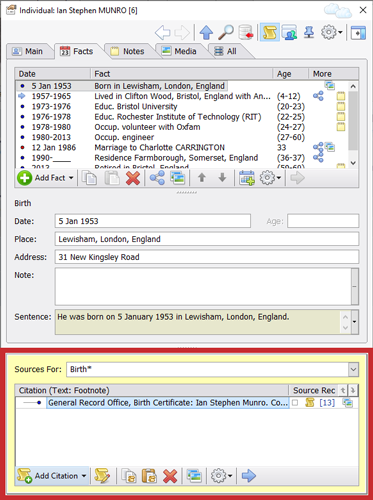
Citation List Pane (marked in red) positioned at the bottom of the Property Box
You open or close the Property Box's Citation List pane by
clicking on the Show Sources button  on the Property Box toolbar. By default, the
Citation List pane has a yellow background, to make it easily
distinguishable from the rest of the Property Box. It is normally
displayed at the bottom of the Property Box, but this is
configurable. If you do not have a large screen, you can also
specify that you want the Citation List pane to open as a separate
window, if you prefer (see the Property
Box tab of Preferences).
on the Property Box toolbar. By default, the
Citation List pane has a yellow background, to make it easily
distinguishable from the rest of the Property Box. It is normally
displayed at the bottom of the Property Box, but this is
configurable. If you do not have a large screen, you can also
specify that you want the Citation List pane to open as a separate
window, if you prefer (see the Property
Box tab of Preferences).
If the Citation List pane is too small, click-and-drag on Gripper
Bars, in the area separating the Citation List pane from the rest
of the Property Box, to re-size it. Gripper bars can be horizontal or
vertical. The horizontal ones look like this:  .
.
The Citation List pane has one field ('Sources for') and a list of Source Citations:
| Sources For | This lists all the fields in the record which contain data, and for which a source can be cited. Some subfields cannot be given separate source citations. For example, a single source citation is used for both the place and date of birth. If the source citation only applies to one of these, this fact should be noted in the Note field. |
|---|---|
| Citation List | This list is a list of source citations associated with the currently selected item in the field above. The list has 2 columns: Citation, and Source Rec. By default, the Citation column displays the Footnote text for the citation, but this is configurable (see below). The kind of text used is displayed after the word 'Citation' in the column heading. The record id of the Source record associated with the citation, is shown in the Source Rec column. |
Below the Citation List is the Citation List toolbar, which has the following toolbar commands:
 Add Citation |
Add source citation. By default, clicking on this button
will result in a menu being displayed with these options:
When a new Source is created, or an existing source is cited, full details of both the Source record and the citation link to it, are displayed in the Citation Window. To learn about the difference between generic Source records and templated Source records (Source from Template), see Sources and Source Templates. |
 Edit Source Citation |
Displays the selected source citation in the Citation
Window. Double-clicking on a source citation does the
same thing. Note: Once you have double-clicked on a source citation, the Citation Window will not only open to display that source citation, but the window will become pinned, meaning that it will stay in sync with the selection in the Citation List pane. As the selection changes, the Citation Window will update itself appropriately. |
 Copy Citation |
Requires a selection in the Citation List. Copies the citation to the source clipboard. The source clipboard is a separate clipboard, different from the usual Windows clipboard, managed internally by Family Historian. This means that if you copy something else (something other than a citation), to the usual Windows clipboard, the copy will not affect the source clipboard, so you will still be able to paste a previously copied citation. |
 Paste Citation |
Requires that a citation should previously have been copied to
the Source clipboard. Pastes the citation into the Citation
List. |
 Delete Citation |
Deletes a selected citation. |
 Show Media |
Shows media linked to the source citation in the Media tab of the Citation Window. |
 Show Media |
Displays a menu with the following menu commands:
|
 Go To Source Record |
Displays the Source record
associated with the selected source citation in the Property
Box. Click the Go Back button  to return. to return. |
If you are inputting a significant amount of data from a given source, you are recommended to consider Source-Driven Data Entry tools, such as Data Entry Assistants (see Source-Driven Data Entry) or Automatic Source Citations.