Workspace Windows
The Diagram Window
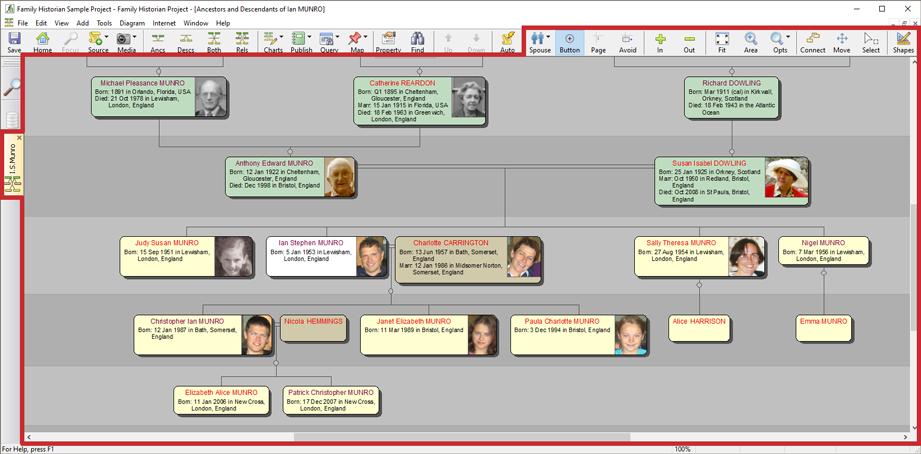
Diagram Window (marked in red)
The Diagram Window is opened by clicking on one of the buttons for the 4 basic types of diagram ('Ancs'
 ,
'Descs'
,
'Descs'  ,
'Both'
,
'Both'  or 'Rels'
  ),
shown on the main application toolbar, or by clicking on the 'Charts'
button
),
shown on the main application toolbar, or by clicking on the 'Charts'
button  on the main toolbar, and choosing a diagram from the dropdown menu that
apears. You can also choose diagrams from the Charts submenu of
the View menu. You will normally be prompted to confirm
the Tree Root Type (individual or couple), and who the tree root
(or roots if a couple) should be. You can also specify the initial
number of generations to display. If you wish, click on the More
Options link to view and change all Diagram
Options.
on the main toolbar, and choosing a diagram from the dropdown menu that
apears. You can also choose diagrams from the Charts submenu of
the View menu. You will normally be prompted to confirm
the Tree Root Type (individual or couple), and who the tree root
(or roots if a couple) should be. You can also specify the initial
number of generations to display. If you wish, click on the More
Options link to view and change all Diagram
Options.There are 4 basic types of tree that can be displayed in a diagram. These are:
- the Ancestors tree
- the Descendants tree
- the Ancestors and Descendants tree
- the All Relatives tree
All of these tree types can be displayed in the Diagrams Window. To learn more about trees (also known as 'smart trees') and the other elements of Family Historian diagrams, see Diagram Elements.
Almost every aspect of the Diagram Window can be configured from the Diagram Options Dialog. To open the Diagram Options Dialog, click on on the Diagram menu.
You can save a configuration of the Diagram Window as a new diagram type, by clicking on on the File menu, and then selecting Custom Diagram Type.
The Diagram Window has its own menu and toolbar, both of which are only available when the Diagram Window is active. See Diagram menu for an explanation of the function of the different commands on this menu.