Automatic Source Citation Pane
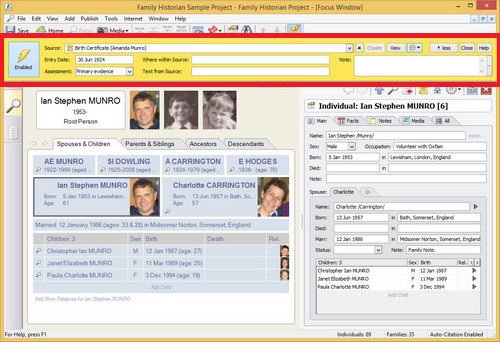
Automatic Source Citation Pane (marked in red)
Overview
The Automatic Source Citation Pane is used to specify an automatic source citation - that is, a source citation which will be applied automatically to all new data that you add to your project, when you add it; or to existing data when you modify it. Automatic source citations work equally whatever technique you use to create new fields or records, or to modify them. It doesn’t matter whether you are entering data via the Property Box, using Diagram- based Editing, or Low-Level Editing in the Records Window - automatic source citations will work in all cases.
To open the Automatic Source Citation Pane, click on the Automatic
Source Citations Pane button  on the main
application toolbar.
on the main
application toolbar.
To enable Automatic Source Citations, you must, at a minimum, specify a source record, and click on the button . You can optionally also specify further details of your automatic source citation - such as Text from Source, Note, Entry Date, Assessment and Where with Source. You can change any of these details, including the original Source record, at any time, without disabling Automatic Source Citations, and the new details will be included in automatic source citations from then on.
Automatic Source Citations are only applied when the button has been clicked, and is displaying as 'Enabled'. When automatic source citations are enabled, you will see ‘Auto-Citation Enabled’ in the bottom right corner of the application status bar. Automatic Source Citations will be automatically disabled if you close the Automatic Source Citation pane, or clear the currently selected source record in the pane (or modify its name in any way).
To apply an automatic source citation to existing data, click on the Menu button (showing a 'gear' symbol) and choose the Copy Pane Citation option. You can then use the Paste Citation button on the Property Box Source Pane, to apply the citation to any existing field.
Although primarily designed for Automatic Source Citations, the pane can also be used as a quick way of finding and selecting a source record, and as a quick way of creating and viewing a source record. It can also be used as a quick and convenient way of specifying a source citation to be copied and pasted, to apply to existing data.
Drag-and-drop
The Automatic Source Citation Pane is designed to be used in conjunction with all workspace windows, but particularly with the Web Search Window, using drag-and-drop. If you are viewing a web page in the Web Search window, you can select text identifying the source and either copy and paste it into the Source field, or click on the selected text, and drag-and-drop it onto the Source field. Then you can select a source record with a matching name (the dropdown list will display these when you drop onto the Source field), or you can click to create a new one.
You can also drag-and-drop text into all other fields of the pane.
Fields & Buttons
| Enable Automatic Source Citations | Click on this button to enable Automatic Source Citations. You must previously have selected a Source record. |
|---|---|
| Source | Select a source record by typing a partial name filter, and
selecting from the dropdown list of matching Source records.
Alternatively type the name of a new Source record and click the
Create button to create it. The new Source record will be
displayed in the Property Box. Whenever a Source record is
selected, the Source record scroll icon will display on the left
side of the box. Use drag-and-drop when viewing a web pages (especially if you are viewing it in the Web Search window) to drag a source name into this field. If you drag onto existing text, that text will be replaced. If you drag to the right of existing text, the new text will be appended to the old. See 'Drag-and-Drop' above. |
| View | When you have selected a Source record (and the Source record 'scroll icon is displaying on the left of the Source field), you can click on the button to view it in the Property Box. |
| Find Source Record (menu) | Opens a selector dialog to allow a Source record to be selected. If you have typed text in the Source field, this will be used as an initial filter. |
| Clone Source Record (menu) | If you have selected a Source record in the Source field, you can make a copy of it using this option. The copy will be displayed in the Property Box. |
| Copy Citation Pane (menu) | Copy the current citation details to the clipboard. You can then paste this citation using the Paste Citation command on the toolbar below the list of sources, displayed in the Property Box Source Pane. |
| Paste Citation into Pane (menu) | Citation details can be copied here, and also using the Copy Citation command on the toolbar below the list of sources, displayed in the Property Box Citation Pane. Any copied citation can be used to 'seed' the Automatic Source Citation Pane. |
| Clear Citation Pane (menu) | Clears all values in the Automatic Source Citation Pane. |
| Entry Date | For this and other citation details, see the Property Box Source Pane of the Property Box. |
| less/more | Reduces the size of the Automatic Source Citation pane, and
re-enlarges it. When in compact mode, some fields are
hidden. If one or more of the hidden fields contains a
value, the button will show as 'more (+)'. If they are all
empty, it will just show as 'more'. |
| Close | Disables Automatic Source Citations (if enabled) and closes the Automatic Source Citation pane. |
| Help | Displays this Help page. |
| Text from Source | See Property Box Source Pane. |
| Note | See Property Box Source Pane. |
| Assessment | See Property Box Source Pane. |
| Where within Source | See Property Box Source Pane. |