Property Box: Facts Tab
Pedigree Chart Dialog
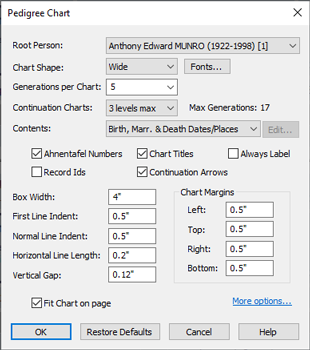
Pedigree Chart Dialog
A pedigree chart shows ancestors of a given person, displayed
in one or more diagram pages in the Diagram
Window. To view a pedigree chart, click on the
button  on the main application toolbar, and choose 'Pedigree Chart' from the
dropdown menu that appears. The Pedigree Chart Dialog is
displayed, allowing you to specify the kind of pedigree chart you
require.
on the main application toolbar, and choose 'Pedigree Chart' from the
dropdown menu that appears. The Pedigree Chart Dialog is
displayed, allowing you to specify the kind of pedigree chart you
require.
With most Family Historian diagrams, you can change options even after opening the diagram. This is true of pedigree charts too - but only with respect to ordinary diagram options. If you wish to change the options you selected in the Pedigree Chart dialog, you will normally have to open another pedigree chart.
What to Do if the Text is Too Small
If the text seems too small, you may want to untick Fit Chart on Page and click the Select button to choose a font of the size you require. This will solve the text size problem, but it may also mean that the chart no longer fits comfortably onto a single sheet of paper when you print it. If this is an issue, you should probably tick Fit Chart on Page again and find another way of adjusting the text size. The first thing to try is to reduce the number of generations. If there is plenty of spare space at the top and bottom, but not much at the sides, this suggests that the chart is too wide to make best use of the available space on each page. By reducing the Box Width you should be able to change the overall shape of the chart, until it approximates to that of your printed page size. This will allow Family Historian to make best use of the available space. Another possibility to consider is reducing the first line indent. This will have the effect of making the root box in each chart (the leftmost box), jut out less far to the left; which may mean again that Family Historian can make better use of the available space.
If Fit Chart on Page is ticked, Family Historian will re-size the chart to fit on a page - if the chart is too big. However it won't increase the size of the chart if it is smaller than it needs be. Increasing the font size will be of no benefit if Fit Chart on Page is ticked, and Family Historian has to shrink the size of each chart. But if Fit Chart on Page has no effect because the chart is small enough already, then consider increasing the font size to make the chart bigger.
Tips on Customization
Pedigree Charts are created using diagram shapes. You can right-click on a chart and click Format to change aspects. You can select any chart and click Ctrl-C to copy it to the clipboard, and Ctrl-V to paste it - into the same diagram or any other diagram. You can even choose the 'root' person for each chart (right-click on a chart, and choose 'Format' from the menu that appears; then select the 'Base Person' on the Data tab).
Each chart is a group object composed of multiple component objects. This means that if you want to you can ungroup them (right-click and select Grouping and then Ungroup) and manipulate the component parts independently. Some component parts are themselves also group objects which can be further ungrouped.
FIELDS
| Root Person | The person whose ancestors will be shown. Always required unless you opt to display a blank diagram (see Contents below). |
|---|---|
| Chart Shape | Choose the shape of the chart - wide or narrow. |
| Fonts | Choose the fonts, style and sizes to use in the chart. |
| Generations per Chart | The number of generations to display in each chart. |
| Continuation Charts | If your root person has more generations of ancestors that can
fit onto a single chart, you can optionally display extra
ancestors on additional continuation charts.
Suppose, for example, that you have chosen to display 3
generations in each chart. This means that parents and
grandparents of the root person will be shown. But what happens if
you also have a record for the person's great grandmother? If Continuation
Charts are set to 1 level or higher, Family Historian will
create a second chart showing the ancestors of the great
grandmother. And what if the great grandmother herself has one or
more recorded great grand parents? In that case, if Continuation
Charts are set to 2 levels or higher, Family Historian will create
additional charts for each of these great grandparents. And so on. If you don't want any continuation charts, just set this value to 'none'. |
| Max Generations | This shows the maximum number of generations of ancestors that could be displayed, for any given root. You cannot edit this value - it is provided for information only, and is determined by the number of Generations per Chart you have chosen and the number of Continuation Charts. You might think that you just need to multiply these two values together to get the Max Generations value, but that is not correct for two reasons: first, you need to factor in the starting chart, which you will always get, even if there are no continuation charts. Also, the root box of every continuation chart is a repeat of a box from an earlier chart, so allowance must be made for this overlap. |
| Contents | Choose the contents of the boxes in charts. Choose Custom if you wish to customize the contents yourself. Choose Blank to display a blank chart. This can be useful if you want to give other people blank sheets, for them to fill in, recording their ancestors' details. |
| Ahnentafel Numbers | If ticked, Family Historian will display the appropriate ahnentafel number for each person in the chart. |
| Chart Titles | If ticked, a title will appear above each chart. |
| Always Label | If ticked, the labels 'b.', 'm.', and 'd.' (for 'birth', 'marriage' and 'death') will always appear, even in empty boxes and on otherwise blank lines. This option is only available if appropriate Contents are selected. |
| Record Ids | If ticked, names will be displayed with record ids in both the title and boxes (unless boxes are blank or have custom contents). |
| Continuation Arrows | If continuation charts are enabled, Family Historian will show the linking chart number in a little arrow, to the right of the box for each person with ancestors that are displayed in a separate continuation chart. |
| Box Width | The width of each box |
| First Line Indent | The amount of the indent from the left box edge of the root box, to the vertical line going up to the parents. |
| Normal Line Indent | Same as First Line Indent, but for all other boxes. |
| Horizontal Line Length | Most lines connecting a box to a parent's box have only 2 parts - a vertical part and a horizontal part. This value is the length of the horizontal part of these lines. |
| Vertical Gap | The vertical gap between boxes |
| Chart Margins | This is the size of the gaps that Family Historian leaves around each chart. Do not confuse Chart Margins with Page Margins, which are set in Diagram Options. |
| Fit Chart on page | If ticked, and if each generated chart is larger than the current default printer page size (allowing for Chart Margins), Family Historian will automatically re-size the chart to fit it within a page. |
| More options | Click on this link if you wish to override diagram options for this chart. For example, you can select landscape page orientation instead of portrait, if you wish. You can also change diagram options after you have opened the diagram (see Diagram Options on the Diagram menu). |