Property Box
Media Viewer
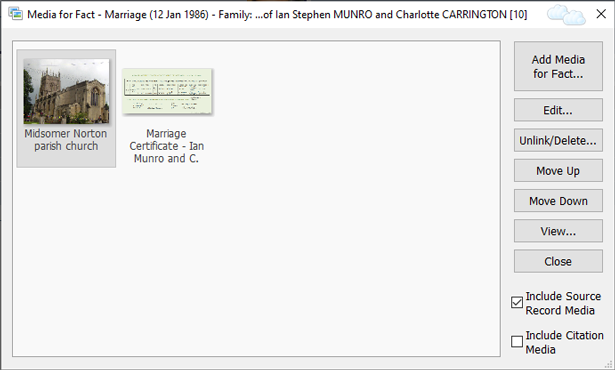
The Media Viewer
The Media Viewer is a floating window
that is opened by clicking on the Show Media button  on the toolbar of the Facts
tab of the Property Box. It shows all media for the
currently selected fact, or for the currently selected source
citation. For example, it might show all pictures taken at a
wedding or at a christening. If you change the selected fact in
the Facts tab, the dialog will automatically update itself
appropriately.
on the toolbar of the Facts
tab of the Property Box. It shows all media for the
currently selected fact, or for the currently selected source
citation. For example, it might show all pictures taken at a
wedding or at a christening. If you change the selected fact in
the Facts tab, the dialog will automatically update itself
appropriately.
When showing media for the currently selected source citation (selected in the Citation List Pane), additional tick boxes at the top will appear to allow you to choose between viewing "Source Record Media" and "Citation Media".
Tip: If a fact has media, it will display the media
icon  in the right-hand column of the Fact List in the Facts
tab of the Property Box. A quick way to open the Media
Viewer is to click on this icon.
in the right-hand column of the Fact List in the Facts
tab of the Property Box. A quick way to open the Media
Viewer is to click on this icon.
Buttons
| Item | Description |
|---|---|
| Add Media for Fact or Add Media for Source Record / Citation |
Displays a dropdown menu with these options:
|
| Edit |
Edit the selected media item in the Edit
Media Item Dialog. |
| Unlink/Delete | Delete or unlink a Media record. You will be asked which you wish to do. |
| Move Up/Move Down | Change the ordering of the linked media items. |
| View | Shows options for displaying the selected media item in an external player/viewer. You can also opt to view the selected Media record in the Property Box. Another option allows you to display all the media items shown in the dialog, in the (workspace) Media Window. |
| Include Source Record Media | When displaying Fact media only. If ticked, and if there are source citations for the current fact, media for all the associated Source records will also be displayed. Note: The Move Up/Down buttons are not applicable for these media items. |
| Include Citation Media | When displaying Fact media only. If ticked, and if there are source citations for the current fact, media for all the associated citations will also be displayed. Note: The Move Up/Down buttons are not applicable for these media items. |
Drag-and-Drop
The Media Viewer supports drag-and-drop. This can be a quick and easy way of adding pictures. See Drag-and-Drop for more details.