Citation Window
Citation Window with a Prepared Citation
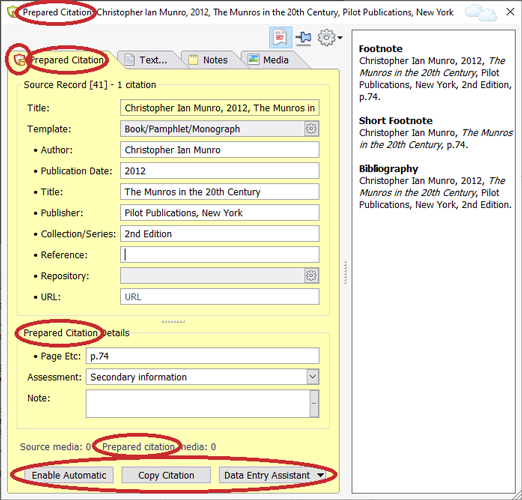
Figure 1 - Citation Window with a Prepared Citation (visual clues marked in red)
When the Citation Window is used to display a prepared citation, there are a few visual clues (all highlighted in red in Figure 1 above), to show that it is being used for a prepared citation, and not for an actual citation. The use of the label 'Prepared Citation' in four different parts of the window is obviously one signficant clue. Another is the colour of the small shield icon on the first tab (red instead of green). And finally, there is the presence of the three buttons at the bottom of the window.
It is important to appreciate that when the Citation Window is used to view a prepared citation, it is also showing details of the Source record that the prepared citation links to. The top half of the window shows the Source record details. The bottom half of the window shows the 'Prepared Citation Details'. Any changes you make to prepared citation details will not affect any data records until you do something with the prepared citation. But if you make any changes to the Source record, those changes are immediate. Of course if you make a change and then regret it, you can click on Undo on the Edit menu to undo it. This applies both to changes to the Source record and to changes to the prepared citation.
To learn more about prepared citations, including their close relationship to the Automatic Source Citation Pane, see Prepared Citation.
To learn more about the three buttons, and how to use them, see Source-Driven Data Entry and also Browse/Install Data Entry Assistants.