Workspace Windows
The Records Window
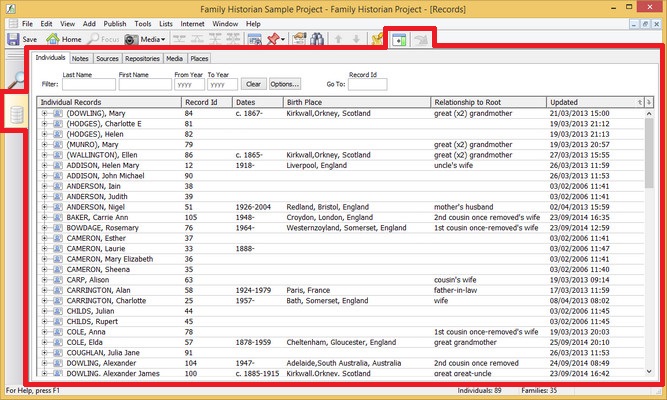
The Records Window (marked in red)
What is the Records Window?
The Records Window is home to records of all types in the current Family Historian file. There are 10 record types and the Records Window has one tab for each of them, although by default most of these tabs are hidden when Family Historian is installed (see the Record Window tab in Preferences).
Unexpanded rows in the Records Window represent records. If you 'open' a record by clicking on the little box to its left, the record will expand to display the fields within it. If these fields contain sub-fields, they too can be further expanded, and so on. To see an entire record, press the ALT key while double-clicking on the record name - that is, the 'left most' row in the left column (assuming you haven't changed the default double-click action in Preferences).
REcord Id
If you want to find a record quickly and know its record id, you can type this into the 'Go To' Record Id box at the top of the Window. If a record exists with the record Id, it will be instantly selected and, if necessary, scrolled into view.
List Filtering
When viewing lists of records of most record types, filtering options are provided at the top of the window. For example, if you are viewing a list of Individual records, you can filter on last name, first name and life dates - or any combination of these. Click on the button to clear the current record filter. Click on the button to view record filtering options.
Search By Partial Name
A quick way to find the first record with a name that matches a given
text, is to click on the list and then type the first few letters of
that name. As long as you type the letters without pausing, the
first record with a name that matches the letters you typed, will be
selected. For example, if you type 'SMI', the first record with a
name starting 'SMI' will be selected'. If you type 'S' and pause,
and then 'M' and pause, and then 'I' and pause, 3 different records will
be selected in turn - beginning with the letters 'S', 'M' and 'I'
respectively.
Configuring Columns
The columns in the Records Window are extremely configurable. Right-click on any column heading and choose from the menu that appears to open a Configure Columns dialog.
Editing Records
Most users will typically use the Property Box for editing records. Double click on any record name to open the Property Box to edit that record (unless you have changed the default double-click action in Preferences)
Browsing & Low-level Editing
Most users will typically use the Property Box for editing records. But they may sometimes prefer to use the Records Window (or the All tab of the Property Box, which has the same layout) as a quick way of browsing records, and seeing all the information stored about a subject. However, almost any kind of editing can be done in the Record Window, and some kinds of editing can only be done in the Records Window. This is called low-level editing.
To add a new field to a record (or to add a sub-field to a field) using low-level editing, right-click on the record or field name (the text in the left column) to bring up a context menu with 'Add' commands for each of the fields or sub-fields which you can validly add. Alternatively, to delete a field, select it and press the Delete key. If you want to edit the value of a field, click on its current value in the right-column.
Where a record contains links to other records, the name of the linked
record is shown in the right column with a little white check box  to the left of the record
icon. Click on this check box if you want to see details of the linked
record.
to the left of the record
icon. Click on this check box if you want to see details of the linked
record.
Some features of the Records Window can be configured in the Record Window tab in Preferences.
Menu and Toolbar
The Records Window has its own menu and toolbar, both of which are only available when the Records Window is active. The Records Window menu is the Lists menu. This is used for maintaining Named Lists. Named Lists are used for a variety of purposes. You can use them in whatever way you wish. You might, for example, use a Named List as a list of bookmarks, or as a 'To Do' list, or as a convenient way of selecting items for a report. You can print the contents of a list (and associated notes) using the List Report. There is no limit to the number of Named Lists you can have. Every Named List can contain all types of record - not just Individual records. You can re-order the items in a Named List, and preserve the new order.