Workspace Windows
The Query Window
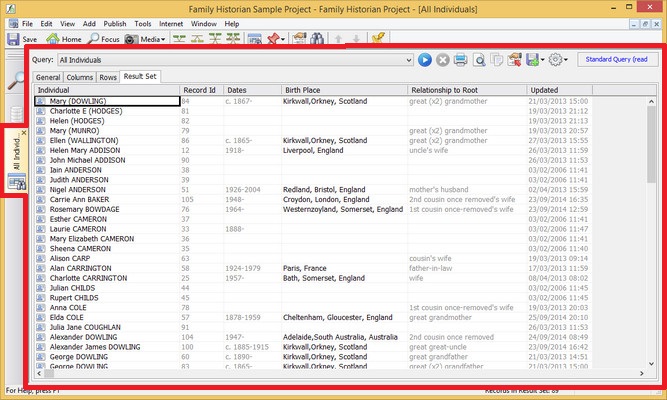
A query is a reusable set of instructions for extracting information from a Family Historian file. The information returned by a query is called a Result Set, and it is laid out in tabular form, in a grid of rows and columns. Each row in the Result Set corresponds to a record. If the query is an Individual query, each row returned will correspond to an Individual record. If it is a Source query, each row will correspond to a Source record.
To open the Query Window click on View > , or click on the button  on the main
toolbar.
on the main
toolbar.
When Family Historian is installed, it comes with a set of queries ready for use. These are called standard queries. You can run any query from within the Query Window, or you can run a standard query, and open the Query Window at the same time, to display the results, by clicking on View > Standard Queries, and then selecting the query you want from the menu.
Some queries require you to make choices and selections when you run them. Some do not.
You cannot delete or alter standard queries significantly. If you want
to modify an existing standard query (which is the best way to start
learning how to work with queries), you must copy them as custom
queries, and then modify the copy (use the 'Save As Custom Query..'
command, which is available from the Menu button  on the Query Window
toolbar). A Custom query is a query that you create yourself. You
can have any number of custom queries, and you can change or delete
them, as you like.
on the Query Window
toolbar). A Custom query is a query that you create yourself. You
can have any number of custom queries, and you can change or delete
them, as you like.
All queries, custom or standard, are available to be used with all Family Historian files. Queries are not stored in Family Historian files - they are managed separately.
The Query Window has its own Query
Toolbar. There is also a small Query
Menu, which is available from the Menu button
on the toolbar.
When constructing or modifying a query, here are some of the decisions you will need to make, and where to go to make them:
| Decision | Where Specified |
|---|---|
| What records do I want? | The Rows Tab |
| What information do I want to display about each record? | The Columns Tab |
| In what order do I want the rows to be displayed? | The Columns Tab |
| What order do I want the columns to appear in? | The Columns Tab |
| What headings do I want for each column? | The Columns Tab |
| How wide do I want each column to be? | The Result Set Tab |
If you want to print a query as a report, you also have to decide:
| Decision | Where Specified |
|---|---|
| What title(s) do I want for the printed report? | The General Tab |
| Do I want the report to appear in Portrait or Landscape mode? | The General Tab |
| If the report is too wide to fit across a single page width, what do I want to happen about the overflowing columns? | The General Tab |
The Query Window has 4 tabs:
| The General Tab | For specifying general features about the query, such as the query type, a description, print details, and so on. |
|---|---|
| The Columns Tab | Allows you to select the columns you wish to appear in the 'Result Set'. Can also specify column headings and sort order. |
| The Rows Tab | Allows you to specify which rows you wish to appear in the Result Set by creating a list of 'filters' that will be applied in sequence. |
| The Result Set Tab | A 'Result Set' is the table of data that is displayed as a result of running a query. The Result Set tab displays the result set. |