Property Box
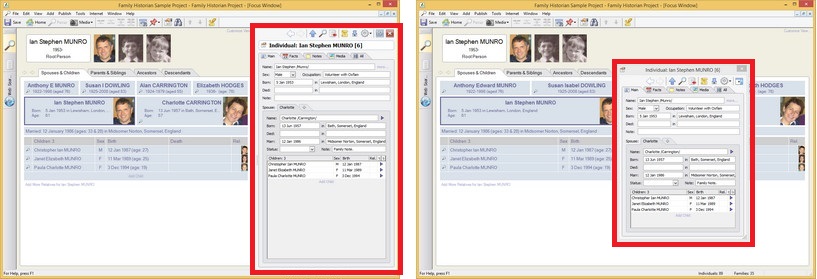
The Property Box (marked in red) - docked and floating
The Property Box is the primary window for data entry and for viewing details of stored records. It is used with records of all types:
It displays different tabs depending on the record type. See the individual record types for more details.
The Property Box can be docked at the side of a window, or it
can float like an ordinary dialog box. Click on the
button  to dock it when it is
floating. Click on the button
to dock it when it is
floating. Click on the button  to float it when it is docked.
It can be resized in various ways. Click-and-drag on gripper bars to reposition boundaries between panes and other areas of the Property Box. There can be up to 4 of them visible at any one time, depending on which tab you are looking at (some Property Box tabs have an extra gripper bar just below the tab toolbar). Gripper bars can be horizontal or vertical.
Horizontal Gripper Bars look like this: 
Vertical Gripper Bars look like this: 
When the Property Box is resized, fields within the Property Box will
be resized and repositioned. If there isn't room for one or more
fields, a clickable dotted line with the word 'more' appears, pointing
down to the missing fields. Click on this to show the missing
fields.
The Property Box can also be customized to show more fields (or different fields), and even more tabs if you wish - see Customize Property Box.
The Property Box has its own toolbar (at the top). The toolbar buttons are described below:
| Item | Description |
|---|---|
 |
Go Back to previous record. |
 |
Go Forward to next record (after having clicked 'Go Back'). |
 |
Individual records only. Go to parent record (father if
there is one, or mother if not). If you press the Alt
key while clicking on this button, it behaves
differently. In that case, it opens the Parent Window to
display the parents for the current Individual. |
 |
View the current Individual in the Focus Window. Also only applicable when viewing an Individual's record. |
 |
Go to this record's entry in the Records Window. |
 |
Show or hide the Property Box Source Pane. |
  |
Enable or disable Sync with Selection. When enabled, the Property Box always displays the record details for the currently selected record (that is the record currently selected in the active workspace window). |
 |
Displays a dropdown menu with commands that are relevant to the Property Box. |
|
Allows the Property Box to 'float' like an ordinary dialog box (only available when the Property Box is 'docked' at the side of the window). |
|
Allows the Property Box to 'dock' at the side of the window (only available when the Property Box is 'floating'). |
 |
Closes the Property Box. Only applies when the Property Box is docked. When floating, you get the ordinary window close button on the Caption Bar. |