More Dialog Boxes...
Snapshot Manager
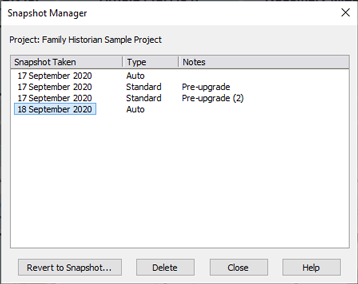
Snapshot Manager
By default, Family Historian will automatically take periodic snapshots of your main data file (that is, GEDCOM file) for each project, without you having to do anything. At most one snapshot is taken each day. The fact that Family Historian does this does not mean that there is no need for you to take backups. Snapshots are no substitute for backups. Backups are extremely important and you are strongly recommended to take them regularly, and store your backups on some other medium, such as a writable CD or DVD, or memory stick, or a folder in the 'cloud' (see Backups to learn more about backup strategies). Snapshots will not protect you against many of the problems that can arise - such as theft of your laptop or PC, or complete hard disk failure. Also, snapshots are not kept forever. Only a maximum of 8 snapshots are stored, at any one time (with default settings); so when the maximum is reached, as new snapshots are stored, old ones are deleted. This is to ensure that the space taken up by snapshots never becomes excessive. Snapshots are only taken when you save changes; so if you view your project without making changes, no snapshot will be taken.
All this said, snapshots can provide a useful additional layer of protection. You can use the Snapshot Manager to revert to a recent snapshot if you wish to do so. When you revert to a snapshot, the current state of your data, prior to the reversion, is saved as a snapshot with type 'pre-revert' (unlike ordinary snapshots which have type 'auto'). This means that, if you change your mind, you can switch back again if you need to. 'Pre-revert' snapshots are not deleted automatically. If you want to delete a pre-revert snapshot, or any other snapshot, you can do so in the Snapshot Manager. You can select multiple snapshots and delete them all in one go if you wish.
You can disable automatic snapshots if you wish, within the File Load/Save tab of Preferences. You can also adjust the number of snapshots that are stored, in Advanced settings of Preferences (General tab).
The Snapshot Manager can be accessed from the Project Window, by selecting a project and clicking the button, and then choosing Manage Snapshots. It can also be accessed from within a project by clicking Backup/Restore, on the File menu, and then clicking Revert to Snapshot.