Property Box
Edit Item
This is an advanced feature for technically-minded users only.
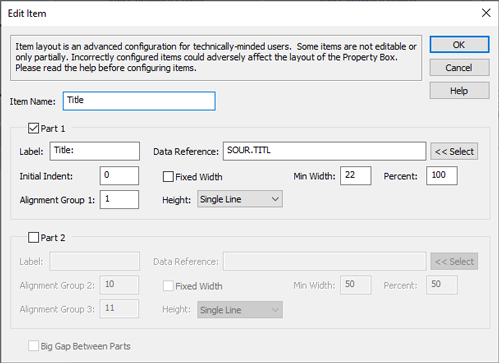
Edit Item Dialog
For convenience, the text of this page will sometimes only refer to customizing the Property Box. However, whether explicitly mentioned or not, all text here applies equally to customizing the Citation Window.
You can view all items, and edit most of them. A small number of
standard and special-case items are not editable (e.g. the "<Template
Fields>" item for Source pages), and the Name item is only
partially editable (you can edit the label only). If you
want to edit an item that is not listed as one of the 'Available Items',
or you want fine-grained control over the layout of the Property Box,
you need to add your own custom items. To add a custom item, choose
<Custom Item> in the list of available items in the Customize Property Box dialog and click on the  button to add it (you will first
have to untick Show the most commonly-used items only if that is
ticked). You will then need to configure the custom item you have
added, in the Edit Item dialog, described here. Configuring custom
items is a more complex task than simply adding a standard item.
button to add it (you will first
have to untick Show the most commonly-used items only if that is
ticked). You will then need to configure the custom item you have
added, in the Edit Item dialog, described here. Configuring custom
items is a more complex task than simply adding a standard item.
Items typically correspond to a single row in the Property Box. An item must have at least one part, and can have two. If it has two parts, the parts can be related to one another, but don't have to be. For example, an item might be an event such as Baptism. In fact, Baptism is listed under 'Available Items' so there is no need to create a custom item for it. But you could if you wanted to (e.g. to fine-tune details). We will use it as an example in any case.
Typically with baptism, you will want to be able to enter the date of the baptism (part 1) and the place (part 2).
Ordinarily, if an item only has one part, this should be part 1. Very exceptionally, you can have an item that only has a part 2 and no part 1. But you should not do this unless you have good reason to do so.
The fields on the dialog box are explained below, followed by an example.
| Item Name | This name is displayed in the Selected Items list in the Customize Property Box dialog. It is not displayed in the Property Box itself. | |
| Part 1 | Tick this box if your item has a part 1 - which will almost always be the case. A item that has a part 2 but no part 1 is possible, but very unusual. You are recommended to always tick this box. | |
| Label: | This is the label for the part 1 edit box. | |
| Data Reference: |
Click on the button for help in generating the data reference. The value might look something like this: INDI.BAPM.DATE Not all possible data references are permitted. You cannot use data references for composite items which have no data of their own, and hence cannot be edited. And you cannot use data references which reference linked records. But any simple data reference (such as a reference to a date, place or number) will be fine. The data reference must be appropriate to the record type in question. If a data reference uses any kind of index other than a simple numeric index or the special '[preferred]' index, the corresponding dialog box field can be viewed but not edited - that is, it will be read-only. For example, this expression uses a simple numeric index, and is valid and editable: INDI.CENS[2].PLAC On the other hand, this expression uses a special index and is valid but read-only: INDI.CENS[year=1911].PLAC You will be warned when you click the button, if you are using any read-only data references. See Understanding Data References to learn more about data references, and indices. |
|
| Initial Indent: |
The initial indent affects how indented the label is. Set this to zero if you do not want the label to be indented. The value given here is in dialog units (see below). |
|
| Alignment Group 1: | See section on alignment groups below. | |
| Fixed Width: | When the property box is resized, most edit boxes will also be resized to take advantage of the available space. But some edit boxes do not need to be resized. Tick this box if the edit box should not be resized. | |
| Min Width: | The minimum width for the Edit box. The value is given in dialog units (see below). If Fixed Width is ticked, the Min Width setting gives the actual width of the edit box. | |
| Percent: | If your item only has one part, set this to 100. If it has 2 parts, the percent is used to determine what percentage of the available space should be allocated to each part when the Property Box is resized. In that case, the sum of both Percent values, for parts 1 & 2, should be 100. | |
| Height: |
Options are Single Line, Multiple Lines or Variable:
Only one part of an item should have a variable height. |
|
| Lines: | Hidden unless 'Height' is set to Multiple Lines. The box will be sized to be big enough to show the specified number of lines of text, using the current property box font. |
|
| Weight: | Hidden unless 'Height' is set to Variable. The weight (vertical weight this is) is normally a number between 5 and 10. The higher the number the greater the height of the item. Bear in mind that the height will vary, depending on the available height - which is determined by the overall height of the Property Box. If a particular tab has 3 items which have variable height, and their respective weights are let us say 5, 3 and 7 (which happen to make 15 in total), Family Historian will assign 5/15 of the available free height to the first item, 3/15 to the second, and 7/15 to the third. |
|
| Label Above Data: | Tick this option if you wish the label to appear above the edit box, instead of to the left of it. | |
| Part 2 | Tick this box if your item has a part 2. The vast majority of items have either just a part 1; or they have a part 1 and a part 2. An item which only has a part 2 is possible, but rare and not recommended. | |
| Label: | Similar to part 1. | |
| Data Reference: | Similar to part 1. | |
| Alignment Group 2: | See section on alignment groups below. | |
| Alignment Group 3: | See section on alignment groups below. | |
| Fixed Width: | Similar to part 1. | |
| Min Width: | Similar to part 1. | |
| Percent: | Similar to part 1. | |
| Height: | Similar to part 1. | |
| Lines: | Similar to part 1. | |
| Weight: | Similar to part 1. | |
| Label Above Data: | Similar to part 1. | |
| Big Gap Between Parts | Tick this option if the two parts of an item are not related to one another (e.g. Sex & Occupation). | |
Dialog Units
Some values are given in Dialog Units. A dialog unit is approximately one quarter of the width of an average character, using the current font.
Alignment Groups
There are 3 fields that relate to alignment groups. These are Alignment Group 1 (in part 1) and Alignment Groups 2 & 3 (in part 2). Each alignment group edit box must have a value in the range 1 to 20. Moreover, the value in the alignment group 3 box must be greater than the value in the alignment group 2 box, and the value in the alignment group 2 box must be greater than the value in the alignment group 1 box.
When the Property Box is resized, Family Historian will adjust the layout. If you have 2 or more custom items, and you want their part 1 edit boxes to be aligned, make sure that they are assigned the same number in their respective alignment group 1 boxes. If you want their part 2 labels to be aligned, make sure that they are assigned the same number in their respective alignment group 2 boxes. And finally, if you want their part 2 edit boxes to be aligned, make sure that they are assigned the same number in their respective alignment group 3 boxes.
Standard items always use values in the range 1-10. So by using values in the range 11-20 you can avoid affecting the layout of existing standard items. However, if you want your custom items to align (or parts of them to align) with standard items, you need to use the same alignment group values that they use. Typically items which only have one part, use a value of '1' for Alignment Group 1. Event items, which have 2 parts, use values of 1, 2 and 3 respectively for alignments groups 1, 2 & 3. The 'Sex & Occupation' item uses 1, 4 and 5 (which is why the Occupation label and its edit box do not align with the 'in' part of Event items).
Baptism Example
The example below shows the values for all fields that you could use to create a custom item for baptism (for the Individual record type):
| Item Name | Baptism |
| Part 1 | Ticked |
| Label: | Baptism: |
| Data Reference: | INDI.BAPM.DATE |
| Initial Indent: | 0 |
| Alignment Group 1: | 1 |
| Fixed Width: | Unticked |
| Min Width: | 67 |
| Percent: | 40 |
| Height: | Single Line |
| Part 2 | Ticked |
| Label: | in |
| Data Reference: | INDI.BAPM.PLAC |
| Alignment Group 2: | 2 |
| Alignment Group 3: | 3 |
| Fixed Width: | Unticked |
| Min Width: | 22 |
| Percent: | 60 |
| Height: | Single Line |