More Dialog Boxes...
Plugins Dialog
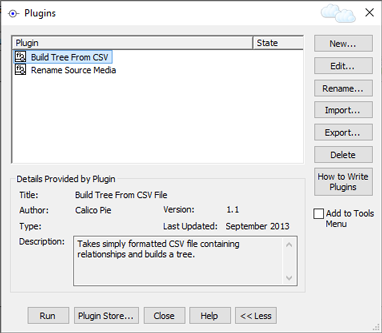
Plugins Dialog (in expanded mode)
To open the Plugins Dialog, click on Plugins on the Tools
menu. The Plugins Dialog lists all the plugins
you have installed (if any). A plugin is an extension to the main
program which adds capabilities and features. The features added
could be almost anything - a new report, a new diagram, a new way of
entering or importing data, a new way of exporting data, a new mapping
or timeline tool, a new website generator .... anything at all.
Before you can run a plugin, you have to install it.
To find and install a plugin, click on the button. This will open your web-browser and take
you to the Plugin
Store page on the Family Historian website. The Plugin
Store contains numerous free plugins, with more being added all the
time. Browse the available plugins until you find one or more you
wish to install. Within the details page for each plugin is
a button. Click this
button to download and install the plugin file. When you click on
this button, your web-browser may ask you if you wish to 'open' or 'run'
the file. If you do either, this will install the plugin.
Alternatively, you can download the plugin file to your hard disk and
run it there (e.g. if you download it to your desktop you can
double-click on it to run it). This is another way of installing
it. It doesn't matter whether or not Family Historian itself is
running when you install a plugin.
The Plugin Store is only one possible source of plugins. Anyone
can write a plugin, and can make them available wherever they
want. See the Plugin Store home page for other possible sources of
plugins.
Plugins can be run from the Plugins Dialog by selecting it and clicking the button. If you find that a plugin is particularly useful and you wish to be able to access it more easily, make sure it is selected and tick Add To Tools Menu, to add it to the Tools menu (you may need to click the button to see this tick box). Thereafter you will be able to run the plugin by simply clicking the new command on the Tools menu.
Any plugins obtained from external sources should be treated with care as they could potentially contain errors or even malicious code. If you are using plugins obtained from other people you should treat them with no less caution than you would treat any other computer program. You should not import or run a plugin unless you know and trust the source of the plugin, and you know what it does.
How to Write Your Own Plugins
Family Historian provides everything you need to write your own
plugins, and it isn't hard to do - especially for anyone who has prior
experience of writing scripts, macros, plugins or computer programs of
any kind. Family Historian plugins are written in a language
called Lua, which is used in a similar way in many commercial
applications such as Adobe Lightroom and also in games software.
Its emphasis is on ease-of-use for non-programmers. But it is also
powerful, fast and lightweight.
To create your own plugin, simply click the
button. This will open the Family Historian Editor/Debugger
for a new plugin. All the documentation and information you need
for writing a plugin, is provided in the Family
Historian Plugin Help, which is accessible from the Family
Historian Editor (see the Editor's own Help menu or just click F1 when
viewing the editor), or can be accessed by clicking on the button in this dialog (see below). The
Plugin Help documentation includes (or provides links to) everything you
need to know about Lua, about how to access your data from within a
plugin, and about the Editor/Debugger.
Buttons
| New* | Opens the Plugin Editor to create a new plugin. |
|---|---|
| Edit* | Edit a plugin in the Plugin Editor. |
| Rename* | Rename a plugin. |
| Import* | Import a plugin. |
| Export* | Export a plugin. |
| Delete* | Delete a plugin. |
| How to Write Plugins* | Access the Plugin Help to learn how to write plugins. |
| Add To Tools Menu* | Select a plugin and tick this option if you want the plugin to
be added as a command to the Tools menu. You can remove it
from the Tools menu at any time, by selecting the plugin and
unticking this option. |
| Run | Run a plugin. |
| Plugin Store | Access the Plugin Store (see above). |
| More >> (<< Less) |
Show or hide the buttons on the right hand side. |
* If there buttons are not visible, click the button to show them.