How to...
How to Enter Accent Characters
To enter accent characters into any field, press-and-hold the key that you want to add an accent to. For example, if you want to add an accent for a lower-case 'e', press-and-hold the 'e' key. When you do so, a small popup window will appear looking like figure 1 below, giving you a choice of accents for that letter.
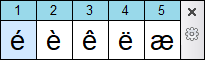
Figure 1
If you wanted to add an accent for an upper-case 'E', press the shift
key and then press-and-hold 'E'.
If the kind of accent you want is not available, you can configure the
Accent popup window to show it. See Configure
Language and Accent Characters to learn more.
You can temporarily disable the Popup Accent Window by pressing-and-holding the Insert key before pressing-and-holding a letter key - if you are using the default option for accent-handling, specified in the General tab of Preferences (Press-and-hold key). When this option is chosen, if the Insert key is pressed, default Windows behaviour will occur and the letter key will auto-repeat. You can also disable accent selection altogether in Preferences. Finally, there is another option, Press Insert and letter key. If this option is chosen, the Popup Accent Window will only open if the Insert key is held down when you press a letter key.